Build a Bot that takes one finished video and its transcript and gives you title options, a description with chapters, thumbnail concepts, Shorts candidates and a pinned-comment draft. You upload and publish yourself.
This walkthrough has not been run end to end.
At a glance
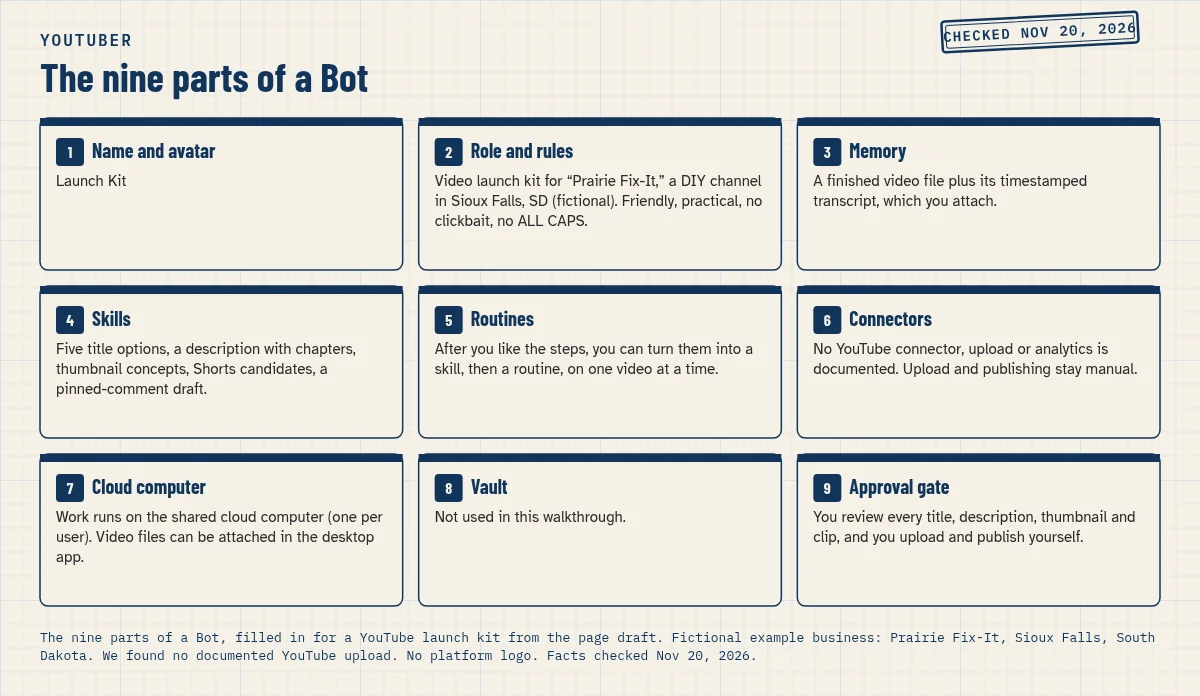
What you’ll have at the end: a Bot called “Launch Kit” that can:
- Write five title options.
- Write a description with chapters from your transcript’s timestamps.
- Suggest thumbnail concepts and create a mock-up.
- Work alongside a clip template to find Shorts candidates.
- Draft a pinned comment.
Uploading and publishing stay manual. We found no documented YouTube upload (checked Nov 20, 2026).
Plan needed: Grok Bot is included on Premium ($30/mo), Super and Ultra on The X Subscription (checked Nov 20, 2026). See Grok Bot pricing.
Prerequisites: 1.6 First Bot, 2.13 Templates and marketplace, and a test video you own.
Meet the creator
Example data (fictional): “Prairie Fix-It,” a DIY home-repair channel run by Sam Okafor in Sioux Falls, South Dakota, (605) 555-0130. Sam films one 15-minute repair video a week (this week: fixing a running toilet) and spends hours on titles, chapters and Shorts. Time zone: Central Time (America/Chicago).
Before you start
- Files, in the desktop app: up to 20 attachments per message. Video can be up to 1 GB each. Transcripts and other documents can be up to 250 MB each. Images can be up to 25 MB each and 200 MB in total per message. If a file is over its limit, the app says it’s too large and leaves it out. (Files and results)
- File types: common supported inputs include video, audio, images and plain-text documents, so a plain-text transcript works. That’s not a complete list. (Files and results)
- On a phone, you can attach a photo or file from the message box, or share one from another app. (Mobile)
- Images: the Bot can create pictures and short video clips when you ask, from a description or from images you share.
- Use a video you own. Don’t upload other people’s content.
Prepare the fictional sources
Step 1: Get the video and transcript ready
What to do in the app: export your finished video and a transcript with timestamps (most editing tools can export one as a text or SRT file). Keep both on your computer.
No prompt.
Expected result: a video file and a timestamped transcript.
Set the boundaries before using apps
Step 2: Add lasting rules
Paste this into: Grok Bot chat, message box
Remember these as lasting rules for Launch Kit:
1. Never upload, publish or post anything. I do that myself.
2. Use only what's in my video and transcript. No made-up results, product claims or safety claims.
3. Any image you create gets "AI-made" in the file name.
4. For home-repair safety (electricity, gas, water), don't add advice that isn't in my video.
Expected result: the Bot confirms the rules.
Create the Bot and connect the test apps
Step 3: Create “Launch Kit”
What to do in the app: create a Bot named Launch Kit. No apps are needed; you attach files.
No prompt.
Expected result: a Bot ready for your files.
Give the Bot its role
Step 4: Describe the job
Paste this into: Grok Bot chat, message box
You are Launch Kit for "Prairie Fix-It," a DIY home-repair YouTube channel in Sioux Falls, South Dakota (fictional). Viewers are beginners. Tone: friendly, practical, no clickbait, no ALL CAPS. Each week I'll attach a video and a timestamped transcript.
Expected result: the Bot repeats the job.
Run the drafts manually
Step 5: Five title options
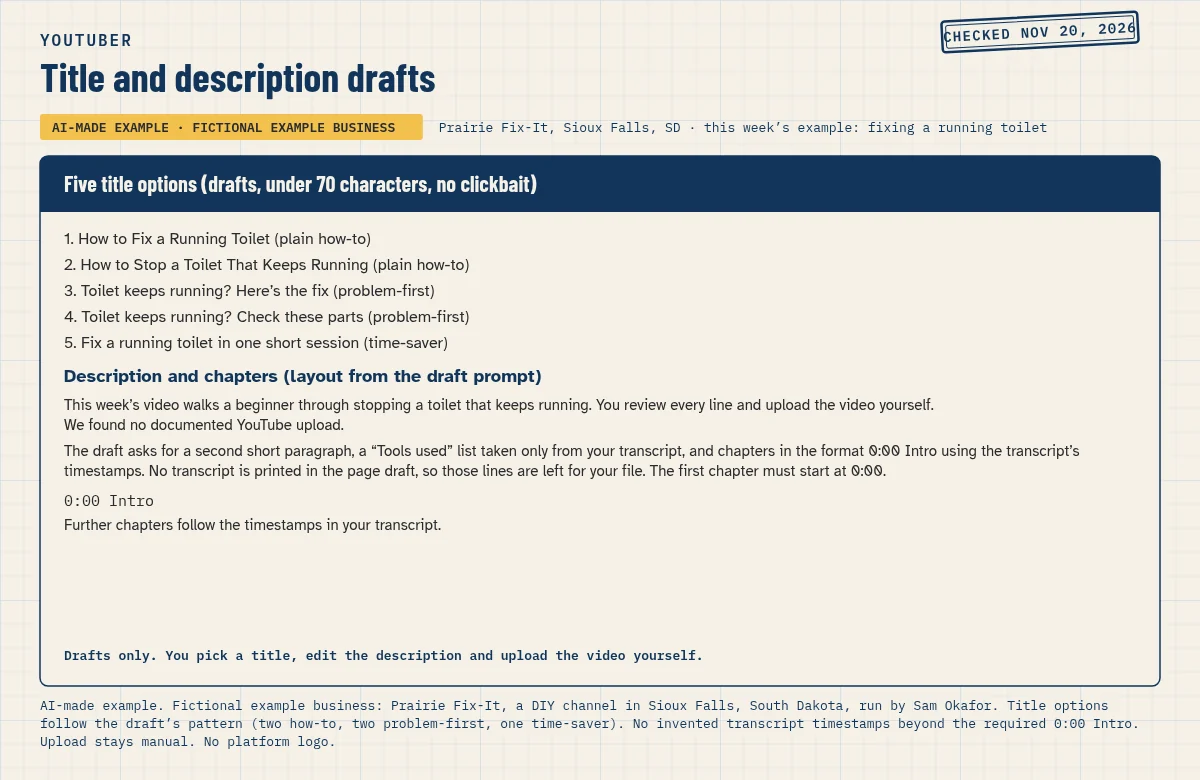
Paste this into: Grok Bot chat, message box (attach the transcript)
Read the attached transcript. Give me 5 title options under 70 characters each: 2 plain "how to," 2 problem-first ("Toilet keeps running?"), 1 time-saver angle. No clickbait.Expected result: five titles to pick from.
Step 6: Description with chapters
Paste this into: Grok Bot chat, message box
Write a description: 2 short paragraphs on what viewers will fix, a "Tools used" list taken only from the transcript, then chapters in the format 0:00 Intro using the transcript's timestamps. The first chapter must start at 0:00.
Expected result: a description ready to paste.
Step 7: Thumbnail concepts
Paste this into: Grok Bot chat, message box
Suggest 3 thumbnail concepts: what's in the frame, 2–4 words of text, and why it's clear at a small size. Then create a rough mock-up of concept 1 so I can see the layout. Name the file with "AI-made".
Expected result: three concepts and one AI-made mock-up. Shoot or design the real thumbnail yourself.
Step 8: Shorts candidates with a clip template
The marketplace describes Clip Bot as finding “the best moments in a long recording” and cutting them “into short captioned clips,” working “from an upload or a link, with transcript and timestamps on every clip.” Stills & Clips Desk is described as pulling “stills, thumbnails, and short clips out of your footage, sized for where they go.” (Marketplace, checked Nov 20, 2026) Add one as a separate Bot and give it your video. We haven’t tested their output. The Grok Bot docs we checked don’t say whether a Bot can read a video from a YouTube link, so attach the file.
No prompt. Follow the template’s own instructions.
Expected result: clip candidates you review and upload yourself.
Step 9: Pinned-comment draft
Paste this into: Grok Bot chat, message box
Draft a pinned comment: one line thanking viewers, one question that invites a reply about their own repair, and the chapter for the most common mistake. Under 300 characters.
Expected result: a comment draft.
Test it
Run Steps 5–9 on two videos. Turn the steps you like into a skill so you can say “launch kit for this week’s video.” A skill is a reusable set of instructions; test it on one real task before making it a routine.
Staff review and next steps
- Check every title and chapter against the video.
- Upload, add the description and publish yourself.
- For posts on other platforms, see the AI social media agent. For turning lessons into newsletters, see the course creator Content Repurposer.
If this goes wrong
- Chapters are off: make sure the transcript has timestamps.
- The video is too large: in the desktop app, video can be up to 1 GB each. The app tells you when a file is too large and leaves it out, so export a smaller file. (Files and results)
FAQ
Can Grok Bot upload to YouTube?
We found no documented YouTube upload (checked Nov 20, 2026). Upload yourself.
Can it cut Shorts from my video?
Marketplace templates such as Clip Bot describe themselves as cutting short captioned clips from a long recording. We haven’t tested their output.
Can it read my YouTube analytics?
We didn’t find a documented YouTube analytics connection. Export a report and attach it instead.