A Bot didn’t reply and you want to know: is Grok Bot down for everyone, or is it just you? The quickest honest answer is the status page. This guide shows you which row to read, what to do during an incident, and what to check next if the status page is clear.
Bot Agents 24 is an independent guide and isn’t affiliated with xAI. This page explains how to check. It isn’t a live status widget, and we don’t publish uptime numbers.

The short version
How to check whether Grok Bot is down
Open the status page and find the Grok Bot row
The Grok Bot troubleshooting guide has a section called “Is Grok Bot down?” Its advice is simple: check status.cursor.com and look at the Grok Bot row. The app itself doesn’t show service status, so the status page is the place to check.
When we checked on Nov 27, 2026, status.cursor.com sent visitors on to status.x.ai. Both addresses lead to the same status site, so you can use either one. Open it in your normal browser.
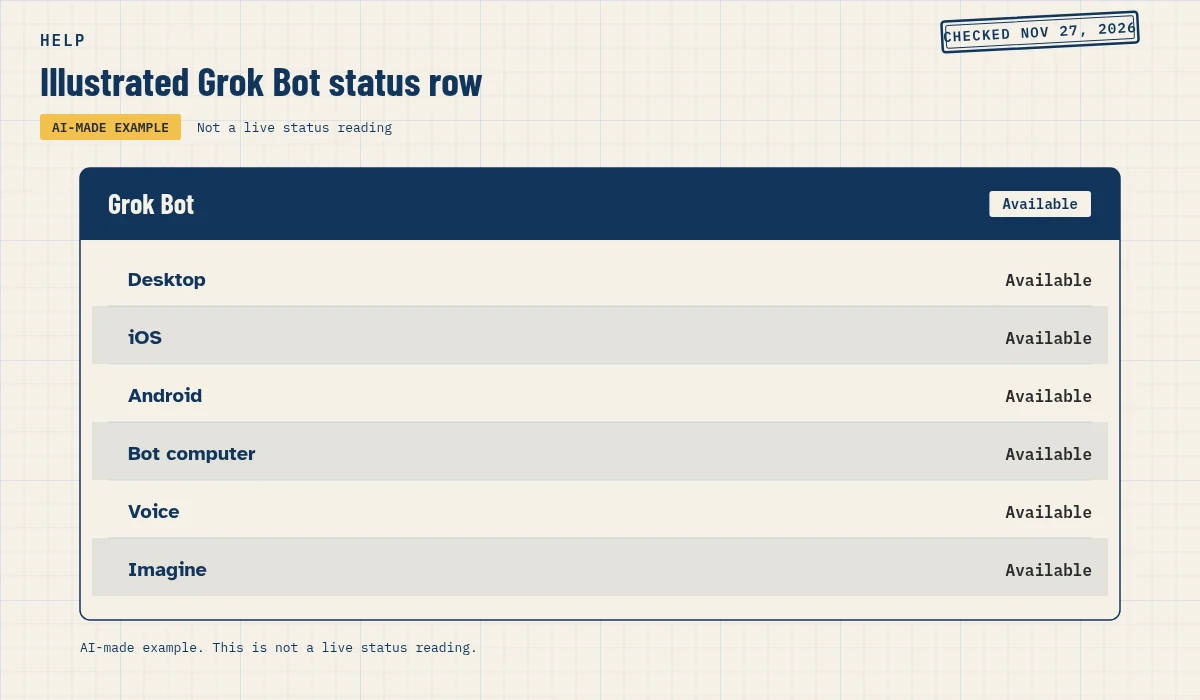
On that page, Grok Bot is a parent row with these child rows:
- Grok Bot: Desktop
- Grok Bot: iOS
- Grok Bot: Android
- Grok Bot: Bot computer
- Grok Bot: Voice
- Grok Bot: Imagine
Read the child rows too. If only Grok Bot: Voice shows a problem, voice may be affected while typed chat still works. That isn’t the same as “the whole app is down.”
An incident on another row isn’t automatically a Grok Bot outage
The same status site also lists rows for Grok, the chat app (grok.com, Grok in X, the Grok iOS and Android apps, Grok Voice and Grok Imagine), and for the Grok API. Those aren’t the Grok Bot row.
Here’s a real example. On Nov 27, 2026, an incident called “API Document Search Outage” was open, marked “investigating”. It listed only “Grok API: Chat (Global, api.x.ai)” as affected. Grok Bot wasn’t on it, and every Grok Bot row was listed as available. So someone seeing a red banner that morning would still need to check the Grok Bot row before deciding their Bot was down.
You can subscribe to updates on that page
The troubleshooting guide says you can subscribe to updates on the status page. Use the subscribe option you see there. That way you hear when an incident starts and when it’s resolved.
If the status page shows a Grok Bot incident
Wait for the incident to be resolved, then send your message again. Don’t Reset the computer and don’t reinstall the app. Neither fixes a service problem, and Reset can lose very recent changes if the computer can’t be reached to save them.
Here’s what a resolved incident looked like on the public incidents feed. On Nov 26, 2026, an incident called “Degraded Performance Grok Bot” opened at 10:44 UTC (5:44 a.m. Eastern Time). The first update said: “We are investigating a service degradation affecting Grok Bot.” It was resolved at 11:16 UTC (6:16 a.m. Eastern Time) with this update:
“This incident has been resolved. Grok Bot chat threads, messages, and voice calls have returned to normal operation, and any requests that failed during the disruption can now be retried.”
So a request that failed during an incident can simply be sent again once it’s resolved. Picture a bike shop owner in Lubbock, Texas, whose Bot stops mid-reply during an incident like that one. The right move is to wait, watch the status page, and resend the message afterward. A Reset would only interrupt the Bot’s computer for nothing.
If the status page is clear, check these next
Work down this list in order. Each step links to a fuller guide.
- “You’ve hit your usage limit.” Your Bot isn’t broken. Your weekly usage is used up, and it resets each week. To keep going now, add prepaid credit (The X Subscription), turn on on-demand usage (legacy Cursor plans), or move to a bigger plan. If you have a usage limit reset, it brings weekly usage back to 0% right away. Look under Resets in Settings → Usage & billing, or choose Use Reset in the banner above the message box. See Usage limit reached.
- “Bot failed to respond” or “Model provider is overloaded.” Wait a moment and send the message again. If the Bot still doesn’t reply, fully quit and reopen Grok Bot. On a Mac, choose Quit from the menu bar. Closing the window isn’t enough.
- The Bot looks stuck. It may be waiting on a page, a question, an approval, a login, a CAPTCHA or a secret request. Check for an approval card or a question in the chat. Send a short redirect if the approach is wrong, or a direct “Stop now” message if the work should end. See Bot not responding.
- The computer says “Reconnecting” or “Couldn’t reach Grok Bot’s computer.” A Bot can’t finish a turn until the computer is back. Your Bot profiles and saved conversations aren’t lost. Wait, then choose Retry. If the computer’s card says Unreachable while chat still works, a VPN or company firewall may be blocking it, so try another network. See Grok Bot reconnecting and Can’t reach your computer.
- First setup or an update is still running. These can take several minutes. Keep the app open while it shows progress, such as “Setting up your Grok Bot…” or “Updating Grok Bot’s computer”. If it says “Taking longer than usual”, Keep waiting is the safe choice unless the update looks stuck. See Why is Grok Bot slow?.
- “You’re offline with Grok Bot.” That means your device has no internet. Your Bots keep working in the cloud. Until you’re back online, the open chat can show “Showing saved messages.”
If a Bot is busy with work you no longer need, send it this message:
Stop now.
If a routine didn’t run, see Routines not running. For the full set of lessons, see Troubleshooting.
What not to do during an outage or a reconnect
- Don’t Reset during a service incident or while the computer says Reconnecting. Reset and Recover rebuild the computer from its last saved data. They interrupt running work, remove installed apps and packages, and can lose very recent changes. Your conversations are stored outside the computer and survive a reset.
- Don’t start a second Update or Reset while one is already running.
- Don’t reinstall the app as a first step. A reinstall doesn’t fix a service incident.
If you do need computer recovery later, the docs give a least-destructive order:
- Wait, then choose Retry.
- Fully quit and reopen the app.
- If an update is offered, go to Settings → Computer → Update Bot’s computer.
- Choose Recover computer if it still can’t reconnect.
- Use Reset only after those steps.
On iPhone and Android, Reset Computer is under Settings → Bot → Bot Computer. Updating and recovering need the desktop app. For more on the Bot’s computer, see Cloud computer and browser.
How to contact support if it still fails
Email support@x.ai from the email address on your Grok Bot account. In the desktop app, you can also open the account menu → Support → Send Feedback. Include the current conversation ID if the problem is in the open conversation.
Add the details that help: copy version info from Support → About, and copy a request ID from the message menu if one exists. Never include passwords, one-time codes, private keys or secret values.
FAQ
Is Grok Bot down right now?
We don’t host a live status feed, so open the status page and look at the Grok Bot row. When we checked at 09:55 UTC (4:55 a.m. Eastern Time) on Nov 27, 2026, every Grok Bot row was listed as available, but that can change at any time. Reload the status page for the current state.
What’s the difference between status.cursor.com and status.x.ai?
The Grok Bot docs name status.cursor.com. On Nov 27, 2026 that address redirected to status.x.ai, so they lead to the same status site. Use either one and look at the Grok Bot row.
The status page says there’s an incident, but not under Grok Bot. Is my Bot down?
Not necessarily. The status site also lists Grok and Grok API rows. On Nov 27, 2026, an API incident was open while every Grok Bot row was listed as available. Check the Grok Bot row and its child rows.
Should I Reset the computer if Grok Bot is down?
No. During a Grok Bot incident, wait for it to be resolved and send your message again. Reset doesn’t fix a service problem and can lose very recent changes.
The Bot says I hit a usage limit. Is that an outage?
No. It means your weekly usage is used up, and it resets each week. You can wait, add prepaid credit, use a usage limit reset if you have one, or move to a bigger plan. See Usage limit reached.
My internet dropped. Did my Bots stop?
No. Your Bots keep working in the cloud, and closing the app, laptop or phone doesn’t stop a background turn or a routine. Until you’re back online, the open chat can show saved messages.
Is Grok Bot shutting down?
This page covers service incidents. We have not found a first-party page announcing that Grok Bot as a product is ending. If your Bot stopped, check the status page and the local checks above.
Where do I write to support?
Email support@x.ai from the email on your Grok Bot account. Include version info and a request ID if you have one, never passwords or codes.