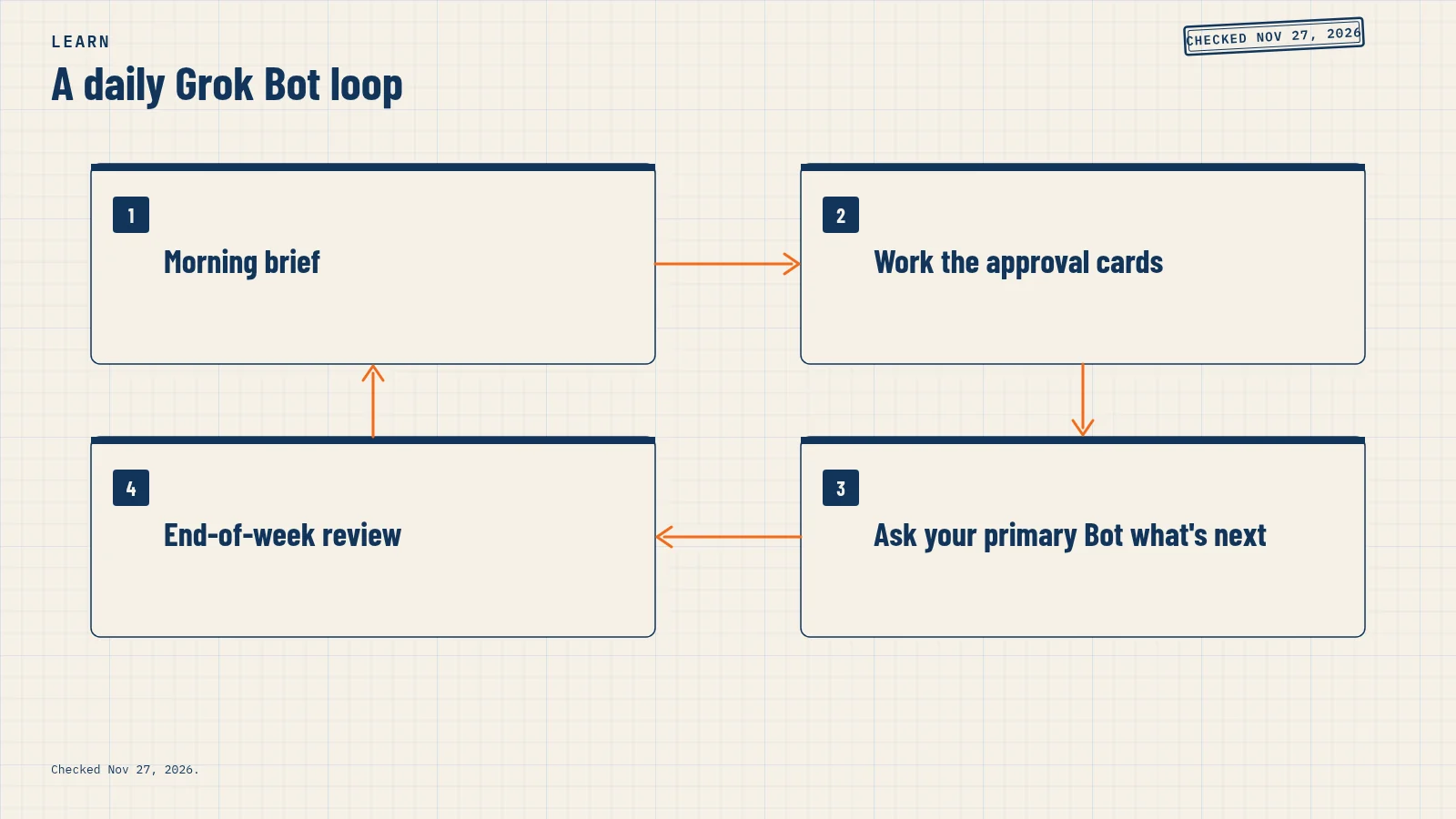
Installing Grok Bot is the easy part. Getting real work out of it every day takes a simple routine: one job per Bot, a morning brief, approvals on, and good tasks turned into skills and then routines. This guide walks you through that daily rhythm, using a fictional hardware store as the example.
Bot Agents 24 is an independent guide and isn’t affiliated with xAI. This is a daily-workflow guide built from the Grok Bot docs. The free lesson course starts at /learn/.
The short version
What “using Grok Bot effectively” means
Grok Bot isn’t a chatbot you close after one answer. It gives you Bots that do work for you on a cloud computer they share. Bots can use that computer, connected tools, websites and files to finish work, not only answer questions. They can keep going in the background, keep context for their role, and work with other Bots. Closing the app, your laptop or your phone doesn’t stop a background turn or a routine.
The Grok Bot docs suggest growing in three steps:
- An assistant that finds information and drafts work in your apps.
- A Bot with a job that takes over a task you keep repeating.
- A team of Bots that works together toward a bigger goal.
This guide covers steps 1 and 2 day to day, and shows when step 3 makes sense. New to the basics? Start with What is Grok Bot?. For how Grok Bot differs from the Grok chat app, see Grok Bot vs Grok.
Set up the daily system (once)
One primary Bot, one job
Give each Bot one job in its first message, and ask it to remember how you want the work done. A Bot with one job builds more useful context than a catch-all helper. If you haven’t made one yet, follow Create your first Bot. To let one Bot coordinate the others, see Chief of staff.
Connect only the apps the brief needs
For a morning brief, that’s usually email and calendar. Connect and test Gmail and Calendar first, then add Slack or docs if you use them. See Connectors.
When a site needs a login, the Bot uses a login saved in Vault first, then a connected password manager such as 1Password, then a Secure Form. It never sees the password. Never paste passwords, one-time codes or private keys into ordinary chat.
Write standing rules and turn on approvals
When an action needs your OK, the Bot shows an approval card and waits. Tell each Bot its standing boundaries and ask it to remember them. Then add narrow Ask first rules for actions such as sending, publishing, deleting, purchasing or changing live systems. See Approvals and Lasting rules.
Bots also remember stable preferences, role context and summaries of past work. A few facts, such as your name and time zone, are shared by all your Bots. Keep logins and cards out of memory and in Vault. See Memory.
What do you remember about me?
Before you tell me a meeting time or how many emails are waiting, check the live calendar and inbox, not only your memory.
A morning briefing you can actually run
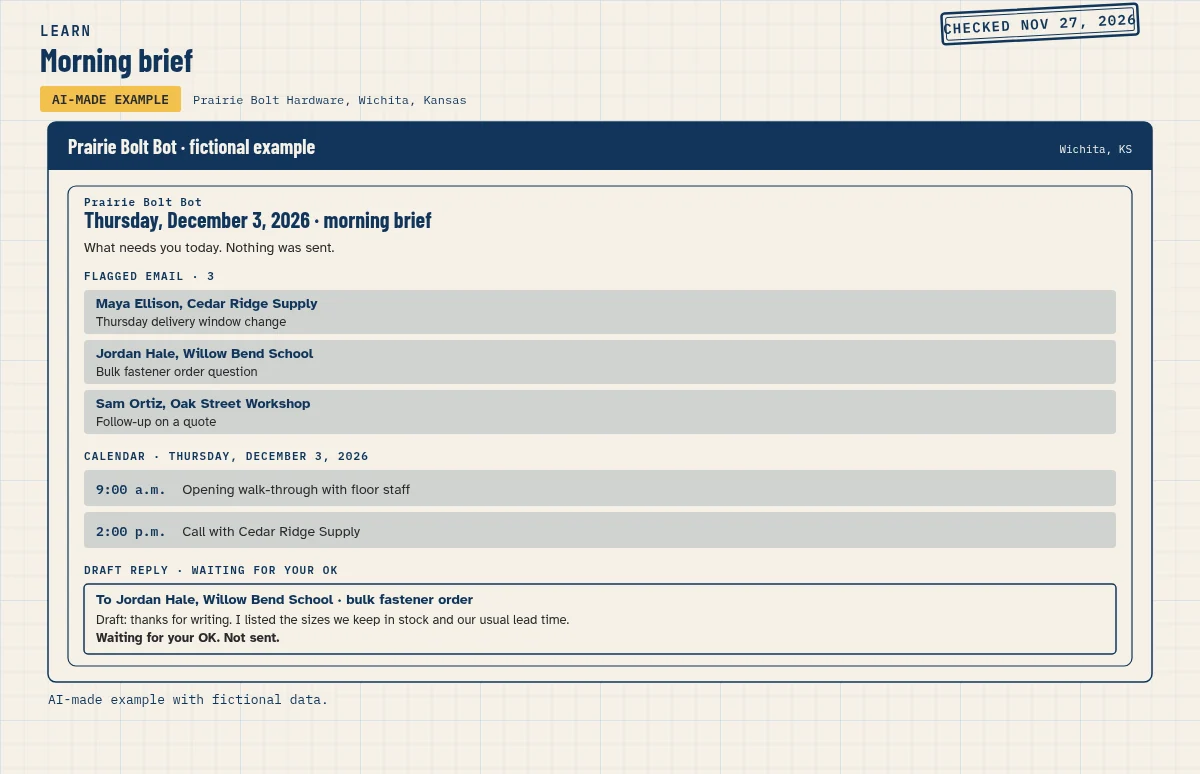
Our example is Prairie Bolt Hardware, a fictional hardware store in Wichita, Kansas. The owner wants one short brief before the doors open, without anything being sent.
The Grok Bot docs offer a morning-briefing starter prompt: “Sum up what changed since yesterday in my inbox, calendar, Slack, and docs, and flag what needs me. Draft it as a post for #team; don’t send it.” Here’s a version for the store that only reads and drafts.
You help run Prairie Bolt Hardware in Wichita, Kansas. Sum up what changed since yesterday in my inbox, calendar, Slack and docs, and flag what needs me today. Post the brief here in this chat. Read and draft only: don't send any email or message, and don't create or change calendar events.
Then sort the inbox the same way. This is based on the docs’ inbox-manager starter.
Sort my unread email into urgent, needs a reply, and FYI. Draft replies to the urgent ones for Prairie Bolt Hardware and don't send anything.
Run the brief by hand for a few mornings and fix what’s missing. When it’s right, save it as a skill and schedule it (see the next section).
Two optional extras:
- Sunday week-ahead plan. The docs describe a calendar use case that, every Sunday evening, reads the week ahead, flags clashes and packed days, and sends you a short plan for Monday. The Bot can read calendars you can see, create and update events, check free time and respond to invitations on calendars you can edit. It can’t change Google Meet settings or add a Zoom link. If you only want a plan, say so: ask it not to change any events.
- Meeting prep. The docs’ starter prompt is: “Prep me for my 2 PM: who is attending, what we last discussed, and any open threads. Keep it to one page.”
During the day: approvals, redirects and “what’s new”
- Work the approval cards. When a Bot wants to send, publish or delete something, it shows an approval card and waits for you. Read it, then approve or decline.
- Redirect or stop. A Bot may look stuck because it’s waiting on a page, a question, an approval, a login, a CAPTCHA or a secret request. Send a short redirect if the approach is wrong, or “Stop now” if the work should end.
- Ask one Bot what’s outstanding instead of checking every specialist. The Grok Bot for Work playbook on x.ai describes four specialist roles its author runs: Inbox Manager, Calendar EA, Intel Scout, and a “Bot Boss” as a single front door. That’s one person’s setup, not a built-in mode, but the idea works for a small shop too.
- Away from your desk? From the iPhone or Android app you can message Bots, approve actions, watch or take over the computer, and pause or resume routines. For voice and messaging options, see Messaging and mobile.
- What’s new: for the latest Slack, shopping and team changes, see What’s new in Grok Bot 1.3.0.
What's outstanding across my Bots today? List anything waiting on my approval first. Don't send or change anything.
Turn a good task into a skill, then a routine
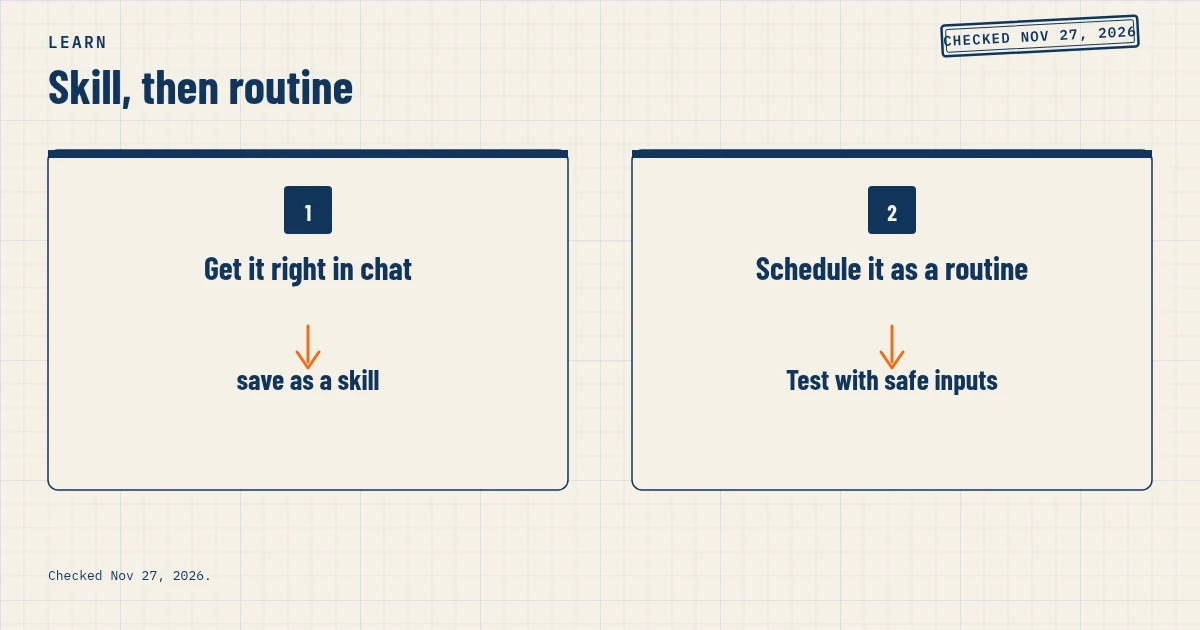
A skill is a reusable set of instructions for how to do a task. A routine tells one Bot when to run a workflow, on a schedule or when something happens. The docs recommend this order: start with a one-time task, make it reliable, save the method as a skill, and only then automate it.
Save the morning brief you just made as a skill called "Prairie Bolt morning brief", with the same read-and-draft-only rules.
Every weekday at 7:00 a.m. America/Chicago, run the "Prairie Bolt morning brief" skill and post the brief in this chat. Don't send email or change the calendar.
Good to know before you schedule:
- Routines run in the cloud while your laptop is closed.
- A new routine waits for its next scheduled time. It doesn’t run when you create it.
- To try it now, use Test in the desktop app with safe inputs. A test run does real work.
- Each run spends usage. On The X Subscription, Grok Bot draws from a weekly pool shared with Grok and Cursor. See Usage and cost.
More detail: Teach a task and Routines.
A short weekly review
This is a Bot Agents 24 habit, not a Grok Bot feature. Once a week, ask your primary Bot to look back, and check usage yourself in Settings → Usage & billing. It’s the same spirit as Tips and best practices.
Give me a short weekly review: the standing rules you follow for me, any facts you remember that may be out of date, any routines that failed or were skipped, and anything you'd change. Draft only: don't change settings or message other Bots.
A small-shop roster, when you’re ready
When one Bot is doing too many things, split the jobs. For Prairie Bolt Hardware, that could be:
- Primary Bot: the front door. It runs the morning brief and tells you what’s outstanding.
- Inbox Bot: sorts mail and drafts replies.
- Calendar Bot: the Sunday week-ahead plan and meeting prep.
Every Bot on your account uses one shared cloud computer, with the same files, browser sessions and logins. So separate Bots aren’t a security boundary; keep approvals on for each one. See Multi-Bot teams. Looking for more Grok Bot use cases? Browse Bot ideas.
FAQ
How do I use Grok Bot effectively?
Give each Bot one job, start the day with a morning brief, keep approvals on, turn a good task into a skill before you make it a routine, and do a short weekly review.
How do I use Grok Bot for free?
Grok Bot isn’t included on the Free or Plus plans of The X Subscription. It’s included on Premium, Super and Ultra. Grok, the chat app, is free to start, but it’s a different app. See Free trial and Pricing for current options.
How do I use Grok Bot for business?
Use the workflow on this page: a morning brief, an inbox sort, a calendar plan and approvals on for anything that goes out. For more ideas, see Bot ideas and Capstone: set up your business.
What are Grok Bot use cases?
The Grok Bot docs list starters such as a morning briefing, an inbox manager, a weekly calendar plan and meeting prep. For a longer list, see Bot ideas.
Does Grok Bot keep working when I close my laptop?
Yes. Bot work runs on the cloud computer, so closing the app, laptop or phone doesn’t stop a background turn or a routine.
What’s the difference between a skill and a routine?
A skill is a reusable set of instructions for how to do a task. A routine tells one Bot when to run a workflow, on a schedule or when something happens. See Teach a task and Routines.
How do I use Grok Bot in Cursor?
Grok Bot signs in with your Cursor account and its usage lives there, but it’s a separate app. For how they work together, see Claude and Cursor.
How is this different from the tips lesson?
This page is the daily rhythm. Tips and best practices is the habits checklist for later in the course.